Personal Kanban for iPhone and Mac
You’re not actually doing everything on your to-do list.
Leave to-dos in To Do, and move to Doing what you need to work on now.
KanKan is a personal Kanban app for iPhone and Mac. Your Doing column stays short, so you always know what you are working on now. And each card’s activity log shows what you did last.
Coming soon to the App Store
See how it works- No account
- No ads or tracking
- Optional private iCloud sync

How it works
Keep your big to-do list in its own column.
Move to Doing only what you’re actively working on now.
When it’s done, move it to Done. Archive it whenever you want. Not the right time after all? Move the card back to To Do.
-
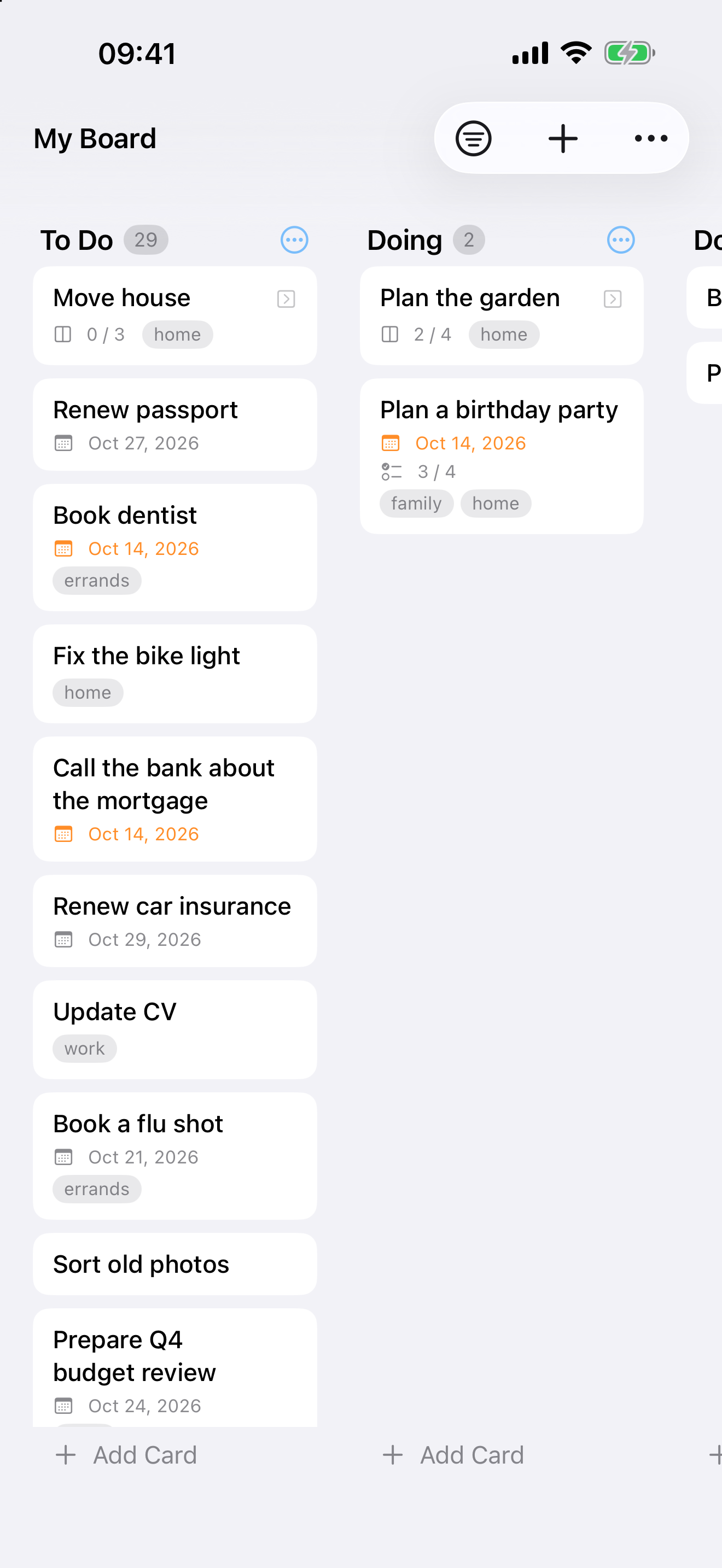
Move to Doing only what you’re working on now.
Drag a card to Doing when you start it. Everything else waits in To Do, however long that list gets. Doing shows only what you are working on now.
-
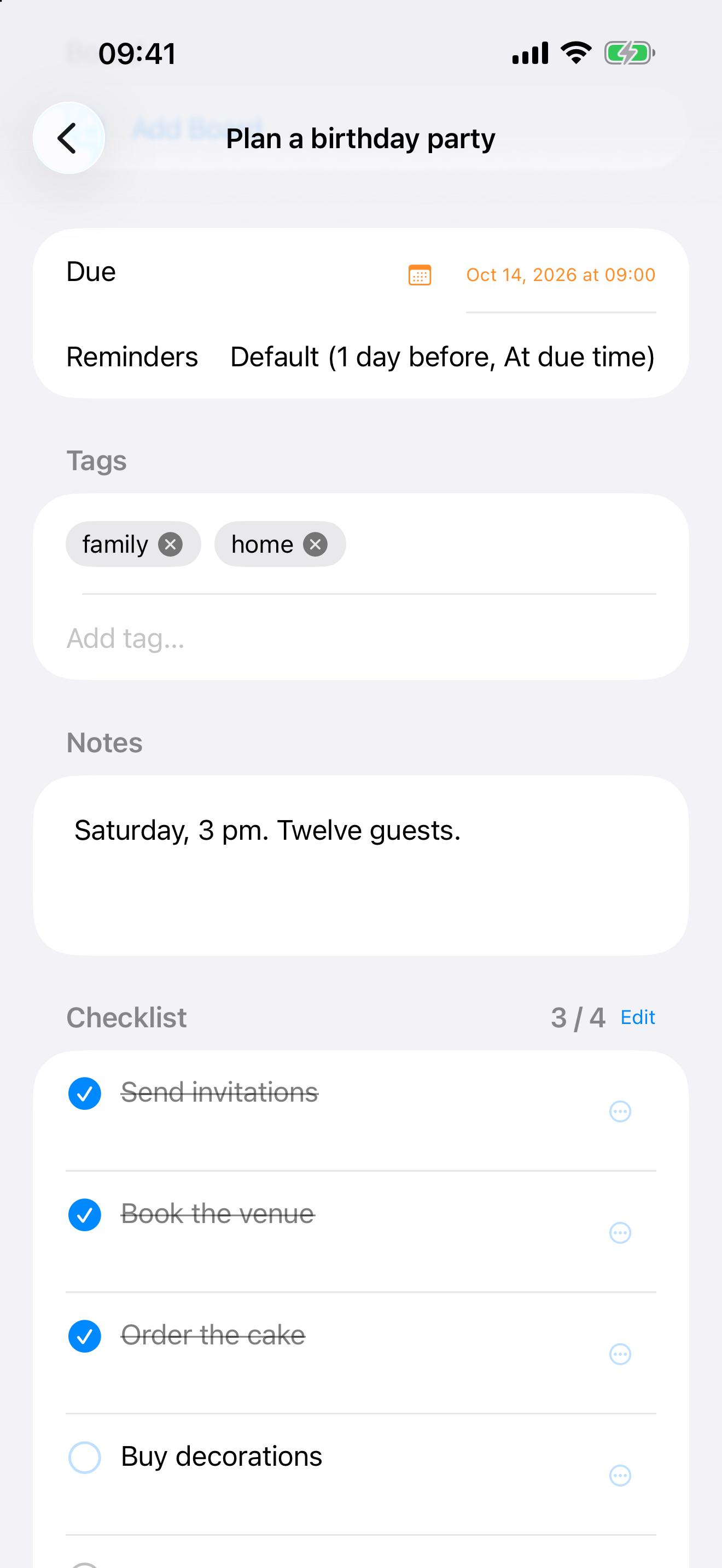
Open the card.
A due date with reminders, tags, a note and a checklist. The details stay with the work.

Activity log
Pick up where you left off.
Tick things off and note what you did. Every card keeps a dated log, newest first. Forgot where you were? Open the card and read your last steps.
- Write what you did. Type a line in the card’s Activity box. You can edit or delete your own lines later.
- Moves are noted for you. When you move the card to another column, KanKan adds a line.
- So are checklist ticks. Tick or untick an item, and KanKan adds a line.


Focus
Focus only on the cards you need.
Tag cards personal, work, family or vacation. Turn on Focus for one tag, and every board shows only the cards with that tag, including the boards inside cards.
- Set it from any board. Pick a tag from the Focus menu in the toolbar.
- You always know it’s on. A “Focus: home” chip stays at the top until you clear it.
- Tags can nest. Focus on work, and cards tagged work/marketing show too.
What you get
Everything a card needs. Nothing it doesn’t.
Activity log
Each card keeps a dated log, newest first. Write what you did. Column moves and checklist ticks are added for you.
Due dates and reminders
Give cards and checklist items a due date. On iPhone, you get a reminder the day before and one at the due time by default; change the defaults in Settings, or set different reminders for one card. Plus an optional daily summary.
Tags
Tag cards by what they are about, like family or home. Tags can nest, like work/marketing.
Checklists
Break a card into steps and tick them off. When a step grows, turn it into a card on the card’s own board.
For bigger work
Too big for a to-do list? Give it its own board.


Boards inside cards
Any card can hold its own board with To Do, Doing and Done. The card takes its status from that board, and moves to Done by itself when the work inside is done.
Agent Access on Mac
Optional. Tools you trust on the same Mac can read and update your cards. They cannot create boards, columns or tags. You can revoke access at any time.
iPhone and Mac
Use KanKan on both. Turn on iCloud sync to keep the same boards on iPhone and Mac, in your own private iCloud. It is off until you turn it on.
Archive and export
Archive finished work and restore it later, with everything inside it. Export a backup at any time.
Privacy
Your boards are yours.
Your boards stay on your devices and, if you turn on sync, in your own private iCloud. DECEMBER CAPITAL cannot see them. An assistant can read them only if you give it access on your Mac.
- No account. Open the app and start.
- No ads, no tracking. No analytics and no third-party code.
- Problem reports are your choice. You see the full report before you send it.
KanKan
Kanban for your life.
Coming soon to the App Store, for iPhone and Mac.